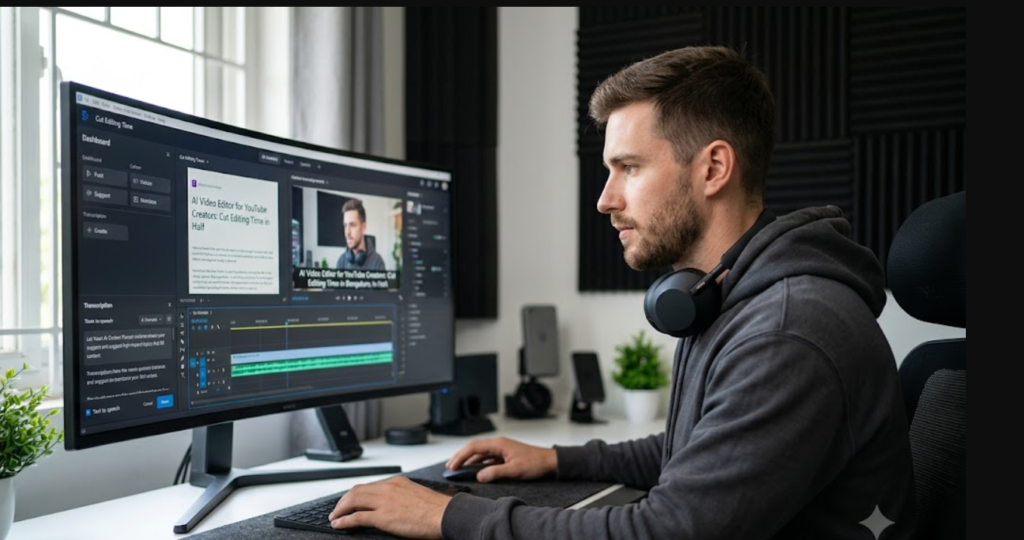
Here is an honest truth that most YouTube advice does not talk about enough: the reason most creators quit is not that they run out of ideas. It is that editing destroys them.In this article we mention some of the AI video editors commonly used that are beginner friendly to advanced.
Recording a video takes an hour. Editing that same video — cutting the silences, removing the filler words, adding captions, fixing the colour, polishing the transitions — can take six to eight hours. Do that four times a month and you have essentially taken on a second full-time job. Most people cannot sustain it, so they post inconsistently, the algorithm stops pushing their content, and eventually they give up.
AI video editing tools exist to break this cycle. The best ones cut genuine editing time in half or better — not by doing a worse job, but by automating the parts of editing that are repetitive and mechanical, so you can spend your energy on the parts that actually need a human touch.
This guide covers the tools that are worth your time, how they actually work, and how to build them into a real editing workflow.
What AI Can and Cannot Do in Video Editing Right Now
It helps to go in with realistic expectations so you are not disappointed when AI does not magically produce a perfectly edited video with no input from you.
Here is what AI handles really well right now: removing filler words, cutting silences, generating accurate captions, colour grading footage automatically, removing backgrounds without a green screen, and repurposing long videos into short clips. These are the parts of editing that take the most time and require the least creativity — which makes them perfect candidates for automation.
What AI still cannot do well: understand storytelling pacing, know when a joke lands or falls flat, decide which moments are emotionally significant, or apply the kind of creative judgment that separates a good editor from a great one. The creative decisions still belong to you. The mechanical ones increasingly do not need to.
The Best AI Video Editing Tools for YouTube Creators
Descript — The One That Changes How You Think About Editing
Descript is unlike any other video editor. When you upload your footage, it transcribes everything you said. Then it lets you edit the video by editing the text — you literally delete words from the transcript and those sections disappear from the video.
This sounds like a small thing until you try it. Suddenly, cutting a rambling 20-minute recording down to a tight 10-minute video becomes something you can do in thirty minutes instead of three hours. You can see everything you said, spot the sections that are not pulling their weight, and cut them the same way you would edit a document.
On top of the text-based editing, Descript removes filler words — um, uh, like, you know — with a single click. It removes silences automatically. And its Overdub feature lets you clone your voice so you can fix a line you misspoke without going back into your recording setup. You type the correction, and Descript generates it in your voice.
The free plan has meaningful limitations, but paid plans start at around $12 per month and are worth it for most creators who are posting regularly.
Best for: talking-head content, educational videos, podcasts repurposed as video, interview-style content.
CapCut AI — The Best Free Option by a Wide Margin
CapCut started as a mobile editing app popular with short-form creators and has grown into a genuinely capable desktop editor with strong AI features — most of which are free.
The auto-caption feature is one of the best available at any price point. It supports over twenty languages, the accuracy is high, and the captions look good without requiring significant manual adjustment. For creators who want their videos to be accessible and have found that captions increase watch time — which they consistently do — this feature alone is worth the download.
The silence remover and smart cut features handle the mechanical cleanup that would otherwise take an hour. Background removal works without a green screen. The AI enhance feature can meaningfully improve footage quality from a basic camera or phone.
Best for: creators on a tight budget, short-form content, beginners who find traditional editing software overwhelming, any creator who wants good auto-captions.
Runway ML — For Creators Who Want Professional Visual Effects
Runway sits in a different category from the others on this list. Where Descript and CapCut focus on efficiency and speed, Runway focuses on what is visually possible — and what it can do has expanded dramatically over the past year.
Background removal without a green screen, inpainting to remove objects or people from footage, motion tracking, and AI-generated video from text prompts are all available in a single tool. If your channel does anything creative — storytelling, filmmaking, music, visual art — Runway gives you capabilities that previously required a professional production team.
It is not the tool you use for every video. It is the tool you reach for when you need something that looks genuinely impressive and you do not have the budget to hire someone to achieve it.
Plans start at $12 per month, and there is a free trial available.
Best for: creative channels, filmmakers, music-focused content, visually driven storytelling.
Opus Clip — The Tool That Multiplies Your Content Output
Opus Clip solves a specific and very real problem: you spend hours recording and editing a long video, post it, and then have nothing for YouTube Shorts, Instagram Reels, or TikTok. Meanwhile, creators who repurpose their content across platforms consistently grow faster.
You upload your long video to Opus Clip, and it watches the whole thing. It identifies the moments with the highest engagement potential, clips them out, reformats them for vertical viewing, adds dynamic captions, and gives each clip a score predicting how well it will perform. A sixty-minute video can produce ten to fifteen short clips in under fifteen minutes.
This is not about posting lower-quality content — the clips it selects are genuinely the highlights of your video, the moments that stand on their own without the surrounding context.
Best for: every creator. Seriously, there is almost no channel type that would not benefit from repurposing long-form content into shorts.
Adobe Premiere Pro AI Features — For Creators Already in the Adobe Ecosystem
If you already use Premiere Pro, several AI features are now built in that are worth using. Auto Reframe automatically adjusts your video’s framing for different aspect ratios — you do not need to manually reframe horizontal footage for a vertical short. Speech to Text generates automatic captions. Scene Edit Detection finds natural cut points and adds them automatically. Colour Match applies consistent colour grading across clips.
These features do not make Premiere Pro a beginner-friendly tool, but they meaningfully speed up the workflow for experienced editors who are already in the Adobe ecosystem.
A Realistic AI-Powered Editing Workflow
This is how you combine these tools into a workflow that actually saves time:
Step 1 — Record without worrying about mistakes. One of the biggest advantages of AI editing is that you no longer need to stop and restart every time you stumble over a word or pause too long. Record continuously, stay in your flow, and let the editing tools handle the cleanup.
Step 2 — Upload to Descript for the first pass. Let it transcribe your footage, remove fillers, and cut silences automatically. Then do your story edit here — read through the transcript and cut anything that feels repetitive or off-track.
Step 3 — Export and bring into CapCut or Premiere for the visual layer. Add your B-roll, adjust audio levels, apply captions with CapCut’s auto-caption tool, and make any final visual adjustments.
Step 4 — Run through Opus Clip for shorts. Before you export your final video, send the edited version to Opus Clip and let it generate three to five short clips. Schedule those across the week as separate posts.
Step 5 — Export and upload. With your thumbnail already prepared and your description written, upload your video with all the SEO elements in place.
A process that used to take seven or eight hours for a single video can realistically be completed in two to three hours with this workflow — and you come out with multiple pieces of content instead of one.
The Cost Question
The tools in this guide — Descript, CapCut free tier, Opus Clip free tier — combined cost between zero and about $20 per month depending on which paid features you need. Compare that to hiring a freelance video editor, which in India typically costs ₹2,000 to ₹8,000 per video. At four videos per month, you are saving ₹8,000 to ₹32,000 monthly.
The trade-off is your time, but with AI tools cutting your editing time significantly, the hours you spend are far fewer than before.
Things Worth Knowing Before You Start
Good audio makes everything easier. AI tools for filler word removal, auto-captions, and voice cloning all work significantly better with clean audio. A decent microphone makes more difference to your editing workflow than any software upgrade.
Always do a final manual review. AI edits are accurate but they are not always contextually smart. Sometimes a pause that the AI removes was intentional for comedic or dramatic effect. A ten-minute manual review pass before export catches these things and protects the parts of your video that need a human decision.
Start with one tool, not five. The temptation when discovering AI editing tools is to try everything at once. Pick the one that addresses your biggest current bottleneck — usually Descript for most talking-head creators — get comfortable with it, and add other tools once it is part of your routine.
Final Thoughts
The creators who are growing fastest on YouTube right now are not necessarily the most talented or the best-equipped — they are the ones who have figured out how to produce good content consistently without burning out. AI video editing tools are one of the most practical ways to achieve that consistency.
Start with Descript if your biggest bottleneck is the time it takes to edit your own words. Start with CapCut if you want good results without spending any money. Add Opus Clip to any workflow immediately — the extra content it generates from your existing videos is essentially free reach.
For more tools that help YouTube creators work faster and smarter, check out our full guide on the best AI tools for YouTube creators.