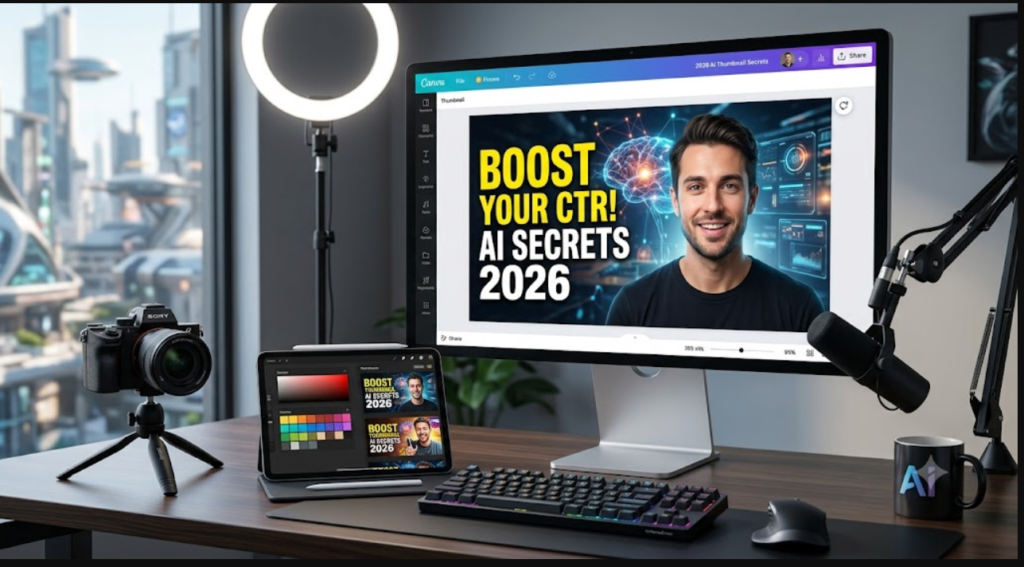
You can have the best video on YouTube, but if the thumbnail does not make someone stop scrolling, nobody is going to watch it. This is one of those things that feels unfair when you first learn it, but once you accept it, it actually becomes one of the easiest ways to grow your channel — because most creators are still putting very little thought into their thumbnails.This article discuss about best thumbnail generators for youtube in 2026.
The good news is that AI tools have made it genuinely easy to create professional, scroll-stopping thumbnails without hiring a designer or spending hours in Photoshop. In this guide, we cover the tools that actually work, how to use them, and what separates a thumbnail that gets clicks from one that gets ignored.
What Actually Makes People Click on a Thumbnail
Before we get into the tools, it helps to understand the psychology behind why certain thumbnails outperform others. YouTube’s own research has found that the vast majority of top-performing videos use custom thumbnails rather than auto-generated screenshots. But not all custom thumbnails are equal.
The thumbnails that get clicked consistently share a few characteristics. They create an emotion — usually curiosity, surprise, or desire. They are readable on a mobile screen, which is how most YouTube is consumed. They have a clear focal point that your eye goes to immediately. And they create a visual gap that the video promises to close — something feels incomplete until you click and watch.
When you understand these principles, AI tools become much more powerful because you know what to ask them to create.
The Best AI Thumbnail Tools for YouTube in 2026
Canva AI — Best Overall Choice
Canva is already the most widely used design tool among YouTube creators, and the AI features added over the past two years have made it significantly more powerful than it used to be. The Magic Design feature can generate complete thumbnail concepts from nothing more than your video title. The background remover works well enough that most creators have stopped using dedicated background removal tools entirely.
What makes Canva the best overall choice is not any single AI feature — it is the combination of AI automation and manual control. You can let the AI generate a starting point and then adjust everything to match your channel’s look and feel. The template library for YouTube-specific formats is also the largest of any tool on this list.
The free plan is usable, though the Pro plan at around $15 per month removes a lot of friction and gives you access to the full AI feature set.
Adobe Firefly — Best for Image Quality
If you need a custom background image or a dramatic visual that stock photos cannot provide, Adobe Firefly produces the highest-quality AI-generated images currently available in a commercial tool. The images it generates are also trained on licensed content, which matters if you are building a brand and want to avoid copyright complications.
The practical workflow for YouTube creators is to use Firefly to generate your background or main visual element, then bring it into Canva to add text and finishing touches. This combination gives you both image quality and ease of use without having to master a complex standalone tool.
Firefly is included with Adobe Creative Cloud subscriptions, and there is also a standalone free tier with limited monthly credits.
Pikzels — Best YouTube-Specific Tool
Pikzels is built specifically for YouTube thumbnails, which gives it some advantages that general design tools lack. It understands YouTube’s thumbnail dimensions, the typical viewing context, and the kinds of visual patterns that perform well in different niches.
The feature that makes Pikzels particularly useful is its A/B testing capability. You can create two thumbnail variations and let it show you which one is predicted to perform better based on pattern analysis from high-performing thumbnails in your niche. For creators who are serious about optimising their click-through rate, this kind of data-backed decision-making is valuable.
It also includes face expression enhancement — useful if you use your own photo in thumbnails and want to make the emotion more pronounced without a professional photographer.
Midjourney — Best for Dramatic and Artistic Visuals
If your channel covers gaming, history, science, horror, or anything that benefits from visually dramatic imagery, Midjourney produces results that no other AI image tool currently matches. The level of detail, atmosphere, and artistic quality it can generate is genuinely impressive.
The trade-off is that Midjourney has a steeper learning curve than the other tools on this list. It works through Discord and requires learning prompt structures to get consistent results. But for creators who invest the time, the thumbnails it produces are almost impossible to replicate with stock photography.
The practical approach is to use Midjourney for your background or hero image, then bring everything into Canva for text, layout, and final adjustments.
TubeBuddy Thumbnail AI — Most Convenient Option
TubeBuddy’s thumbnail tools are built directly into YouTube Studio as a browser extension, which means you can analyse, create, and test thumbnails without switching between applications. For creators who find context-switching between tools disruptive to their workflow, this convenience is worth a lot.
The click-through rate prediction feature is particularly useful — it analyses your thumbnail before you publish and gives you a score based on how it compares to high-performing thumbnails in your niche.
How to Create a High-Performing Thumbnail Using AI — Step by Step
Step 1: Decide on the Emotion Before You Open Any Tool
The most effective thumbnails communicate a single emotion clearly. Before you touch any design tool, ask yourself: what do I want someone to feel when they see this thumbnail? Curiosity and surprise drive the most clicks in most niches, but excitement works well for tech and product content, and trust works well for educational or advice-based content.
Once you have identified the emotion, everything else — the colours, the expression on the face if there is one, the text — should reinforce that emotion.
Step 2: Generate or Select Your Main Visual
If you are using your own face, take a photo with a plain background so the AI background remover can work cleanly. If you want a custom scene or background, use Adobe Firefly or Midjourney to generate it. If stock imagery will work, Canva has a large licensed library built in.
Step 3: Assemble in Canva AI
Upload your visual, remove the background if needed, and start building your thumbnail layout. Keep these rules in mind as you work:
Text should be five words maximum and readable at thumbnail size. Use a font that is bold and high-contrast — thin or decorative fonts disappear on small screens. Put the most important visual element (usually a face or the product) on one side and the text on the other so they do not compete for attention.
Contrast is your most important tool. Bright colours on dark backgrounds or dark text on bright backgrounds will always outperform low-contrast designs.
Step 4: Check It at Mobile Size
Before you finalise anything, zoom out or resize your preview to see how the thumbnail looks at the size it will actually appear on a phone screen. If the text is hard to read or the main image loses impact at that size, simplify the design. What looks detailed and impressive at full size often becomes cluttered and unreadable at thumbnail size.
Step 5: Test Two Versions
If you are using YouTube’s built-in A/B testing or TubeBuddy’s thumbnail testing feature, always run two versions. You do not need dramatically different designs — sometimes changing the text phrasing or the background colour is enough to produce a meaningful difference in click-through rate. Over time, this testing builds up a real understanding of what works for your specific audience.
Thumbnail Mistakes That Kill Your Click-Through Rate
Too much going on. Thumbnails with multiple text elements, busy backgrounds, and several competing visual elements perform worse than simple, focused designs. Pick one thing for the viewer’s eye to land on.
Text that is too small or too thin. If someone needs to squint to read your thumbnail text on a phone screen, the text is not doing its job. Bold, thick fonts in high-contrast colours are almost always the right choice.
Misleading thumbnails. Clickbait thumbnails that do not reflect the actual video content increase your click-through rate briefly but destroy your watch time and viewer trust. YouTube’s algorithm penalises this because when viewers click and immediately leave, it signals that the content did not deliver on its promise.
Inconsistent style across your channel. Your thumbnails should look related to each other. Consistent colours, fonts, and layouts help viewers recognise your content in their subscription feed and in suggested videos.
What a One Percent CTR Improvement Actually Means
This is worth understanding concretely. If your video gets 10,000 impressions per month and your click-through rate goes from 4% to 5%, you get 100 extra views from the same impressions. If those viewers subscribe at a 5% rate, that is 5 extra subscribers from one video’s thumbnail improvement. Multiply that across your entire video library and consistent thumbnail optimisation can meaningfully accelerate your channel’s growth over time.
The Bottom Line
Your thumbnail is the first — and sometimes only — thing a potential viewer sees before deciding whether to click. AI tools have removed the technical barrier that used to make professional thumbnails accessible only to creators with design skills or design budgets.
Start with Canva AI if you are new to thumbnail design. Add Pikzels when you are ready to optimise with data. Bring in Midjourney if your niche calls for dramatic, high-impact imagery. And always test two versions before you settle on one.
For more tools that help YouTube creators work smarter, check out our full guide on the best AI tools for YouTube creators.